
Here's a small, recurring chore that nobody puts on a list: a bill email arrives, you open it, you find the amount (not the previous balance, not the "minimum due", the actual amount), you find the due date, and you write both down somewhere. Then you do it again next week for a different company.
Payday Plan can do the reading. You forward the email; it pulls out the amount due and the date, and lines it up against the right bill. You glance at it and say yes.
This guide covers doing that by hand, and setting it up so it happens on its own.
How it works, in one paragraph
Send or forward a bill email to bills@paydayplan.app from the email address you sign in with. Payday Plan reads it. No AI involved: it looks for the amount due, the due date, and phrases like "will be automatically drafted". It then works out which of your bills it belongs to from the sender, the subject and the company's domain. It puts the result on the Emailed bills page, and adds an "A bill came in by email" line to the card at the top of The Plan. Nothing changes in your plan until you tap Apply.
What it does with each email
What it proposes depends on what the email says:
- A bill it recognizes. It offers This month's amount: "Electric, $212.45, November." That records what the bill actually came to this month, without changing your plan for future months. Your estimate stays an estimate until you decide otherwise.
- A bill that says it drafts itself. If the email says it'll pay automatically and your plan has that bill marked as paid by hand, it also offers to switch it to autopay.
- A company it doesn't know. It offers Add bill, with the name, amount and due day filled in.
- An email with no amount it can find. It keeps the email with a note saying so, and you can dismiss it.
It's careful about which number it takes. "Previous balance", "last payment" and "payments received" never count. "Amount due", "total due" and "please pay" count most. For a credit card statement it takes the minimum payment rather than the full statement balance, because that's what your plan schedules.
If the same email arrives twice, you get one item, not two. If two of your bills look equally likely ("Spectrum Phone" or "Spectrum Internet?"), it says so instead of guessing.
Step by step
Do it in Payday Plan
This is the easy way to start. When a bill email lands:
Forward it to bills@paydayplan.app from the address you sign in to Payday Plan with. You don't need to add any text.
Look for it on The Plan. Within a minute or so, the card at the top of The Plan gets a line saying A bill came in by email, with the bill's name. Tap Review.
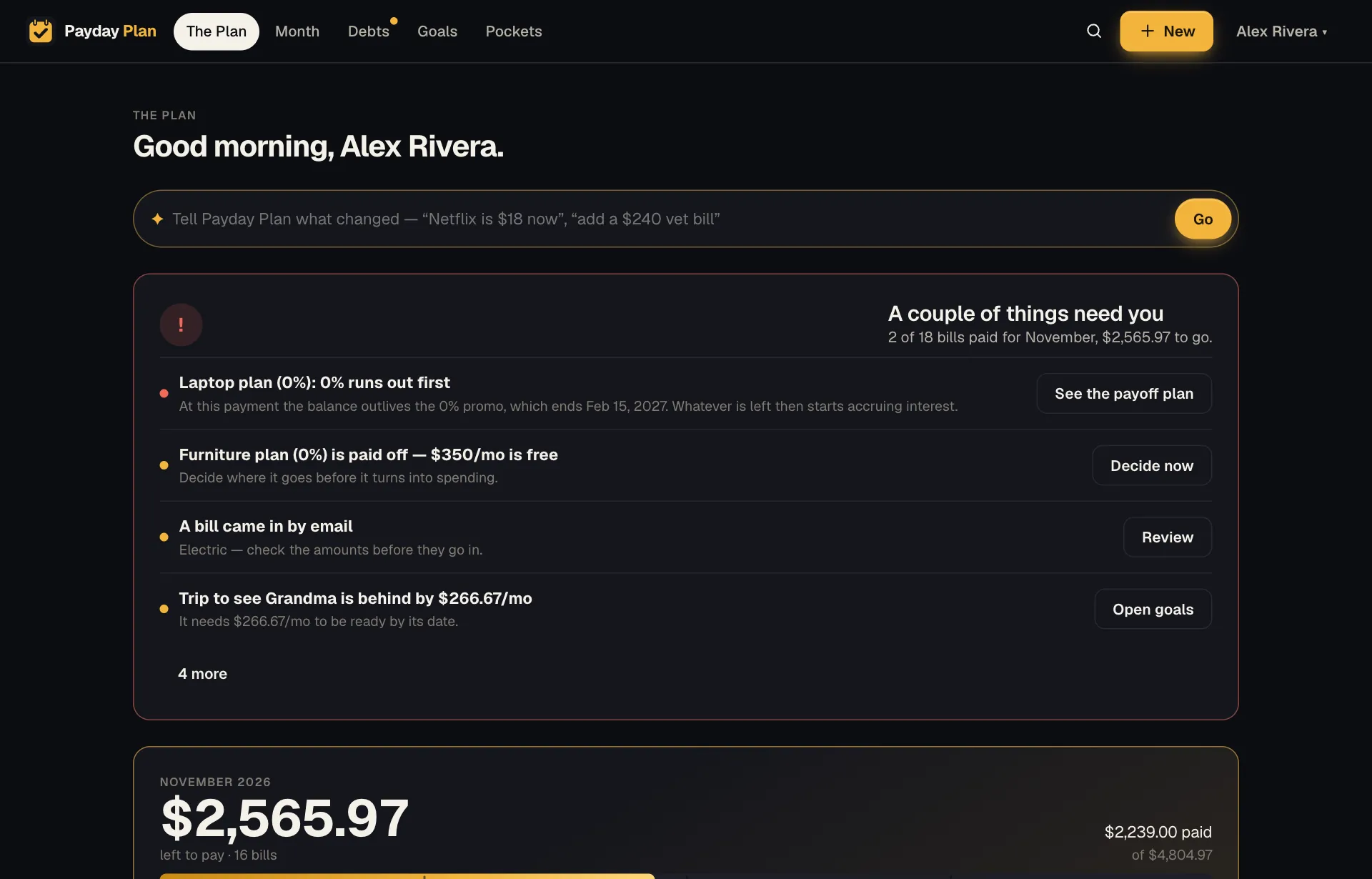
On The Plan, a forwarded bill shows up as A bill came in by email. Review takes you straight to it. Or open Emailed bills directly. On a computer, click your name at the top right and choose Emailed bills. On a phone, tap More in the bottom bar, then Emailed bills. The page is headed Bills that came in by email.
Check what it read. Each email gets a card with the biller, who forwarded it, and the subject. Tap Show the email if you want to see the original. Underneath, each proposal (This month's amount, an autopay switch, or Add bill) has a checkbox and a line saying exactly what it will change.
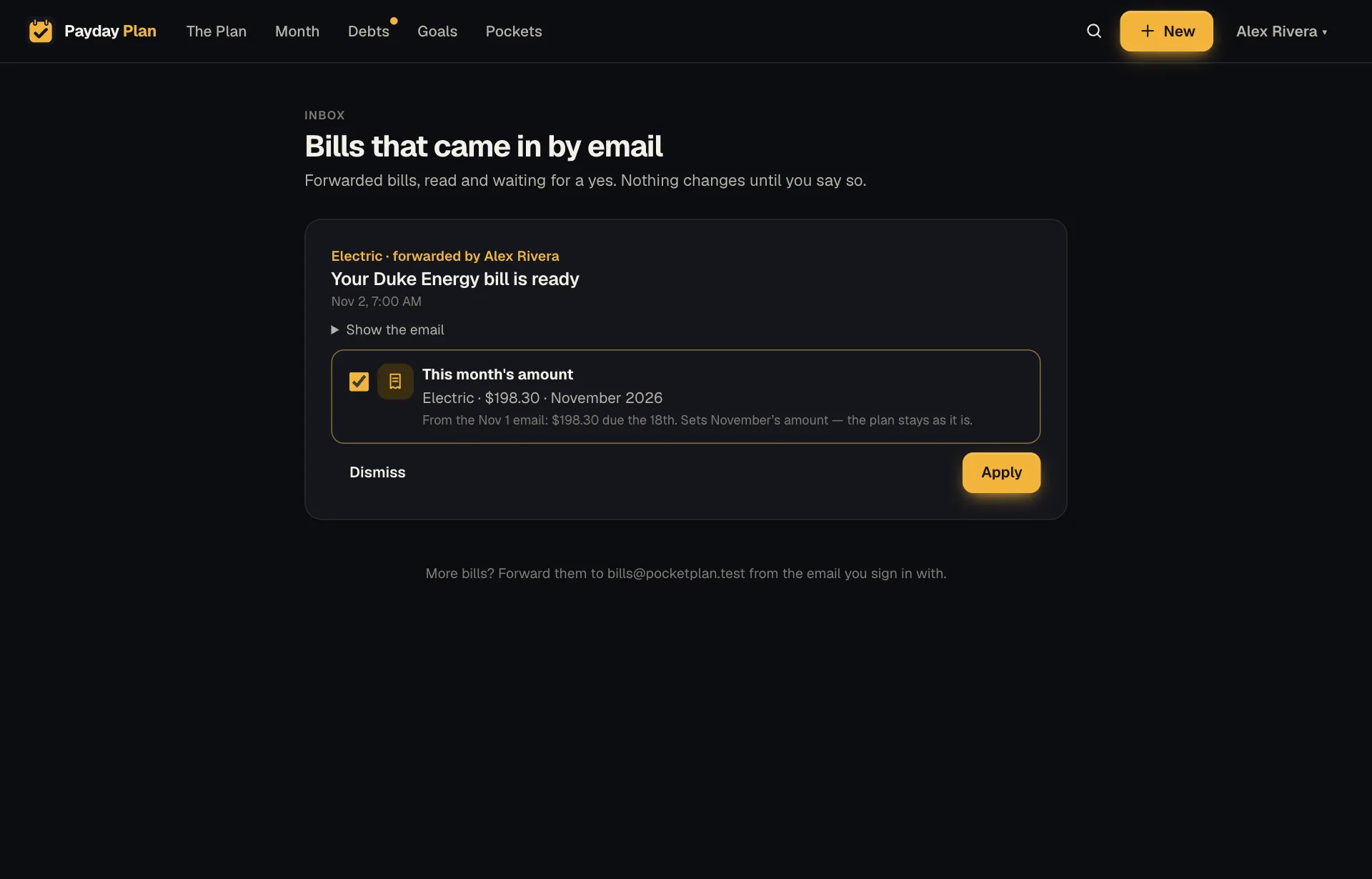
The Duke Energy email, read: $198.30 due the 18th becomes November’s amount for Electric. The plan itself stays as it is. Apply or dismiss. Untick anything you don't want and tap Apply (it reads Apply 2 changes when more than one is ticked). Tap Dismiss to clear an email without changing anything.
The one rule: forward from the address you use to sign in to Payday Plan. That's how it knows whose household the bill belongs to. Mail from addresses it doesn't recognize is turned away, and so is mail that fails the standard checks that prove a message really came from who it says. If your partner forwards from their own sign-in address, that works too, and the card says who sent it.
Forwarding automatically
Once forwarding by hand has worked a few times, you can set it up so particular senders forward themselves.
In Gmail
- Settings → See all settings → Forwarding and POP/IMAP → Add a forwarding address, and enter bills@paydayplan.app.
- Gmail sends a confirmation to that address. Payday Plan recognizes it and puts it on your Emailed bills page as Confirm your Gmail filter, with the confirmation code. Enter the code back in Gmail's forwarding settings, then dismiss the item.
- Create a filter for each biller (Settings → Filters and Blocked Addresses → Create a new filter). In From, put the company's billing address or just its domain, such as
@duke-energy.com. Choose Forward it to bills@paydayplan.app.
Leave Gmail's own forwarding setting on "Disable forwarding". Filters still forward the mail they match, and nothing else leaves your inbox.
Elsewhere
Most mail apps have a rule that forwards messages from a particular sender: Outlook calls them rules, Apple Mail and iCloud have them too. Point one at bills@paydayplan.app for each biller, and keep sending from the address you sign in with.
Try it: start with the two or three bills that change every month, like electric, water and the card statement. Bills that are the same every month (rent, Netflix) don't gain much from being read.
A month of it
Say a household forwards four bills in November:
| What Payday Plan offers | |
|---|---|
| Electric: "Amount due $212.45, due Nov 18" | This month's amount: $212.45 (plan says $180) |
| Water: "Your bill of $64.10 will be drafted Nov 21" | This month's amount: $64.10, and switch it to autopay |
| Card statement: "Statement balance $2,140, minimum payment $65" | This month's amount: $65 |
| A new pest-control company: "$95 due Dec 2" | Add bill: Pest control, $95, due the 2nd |
Four emails, four taps on Apply, and November's plan matches what the bills actually say. At month's end, the recap shows electric came out $32 over the plan, and offers to make $212 the new plan if that's the pattern.
What it doesn't do
It doesn't pay anything. It doesn't connect to your bank or the company's website. It can't read a bill that's only a PDF attachment, or a photo of one. For those, type the number in ("the electric bill came in at $212") or attach the file in the describe box, if photo reading is switched on.
And it's not watching your inbox. It only ever sees what you send it.
This guide is general information about planning a household budget, not personal financial advice. Your numbers, rates and situation are your own — check the terms of your accounts before you act.
Keep reading
More guides
Estimates to actuals: make your plan honest in three months
Every new budget is built on guesses. Here's a simple routine for replacing them with real numbers, so the plan stops being quietly optimistic.
BillsA 15-minute subscription audit
Small monthly charges are easy to ignore and expensive to keep. A three-step, fifteen-minute routine to find them, price them by the year, and decide.
PaychecksPlan the month by paycheck, not by calendar
Your bills run on the calendar but your money arrives on paydays. Line them up by paycheck and the tight weeks stop being a surprise.
Your next payday could come with a plan.
Payday Plan is opening to households a few at a time. Ask for a spot, or sign in if you’re already in.